Home
Pricing
FAQS
Login
Not a Member?
Register
Shopping Cart
Home
Reports
Patrol Report
Incident Report
AgriEC Report Jan-July 2023
Pie Chart
Bar Chart
Thornhill
Van Stadens
Earth Ranger Map
Recent Incidents
Susp. vehicles
Contacts
Medical Emergency Protocol
Uploading Pictures From What's App (Computer)
Home
Uploading Pictures From What's App (Computer)
Return to Incident Report
Follow the steps below to upload pictures if using What's App on your desktop or laptop computer.
Click pn the "+" symbol next to any item to for pictorial assistance.
Click on the "-" symbol to collapse the picture.
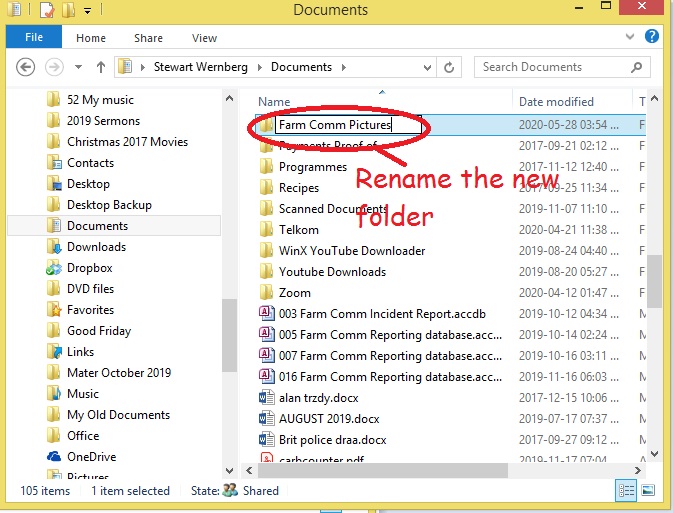
1. Select a folder on your PC where you will keep the pictures or create a new folder, e.g. 'Farm Comm Security Pics'.
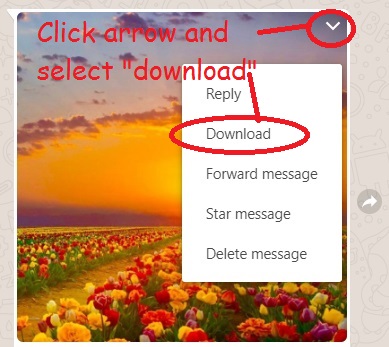
2. In the What's App window, select the down arrow in the picture and choose 'download'
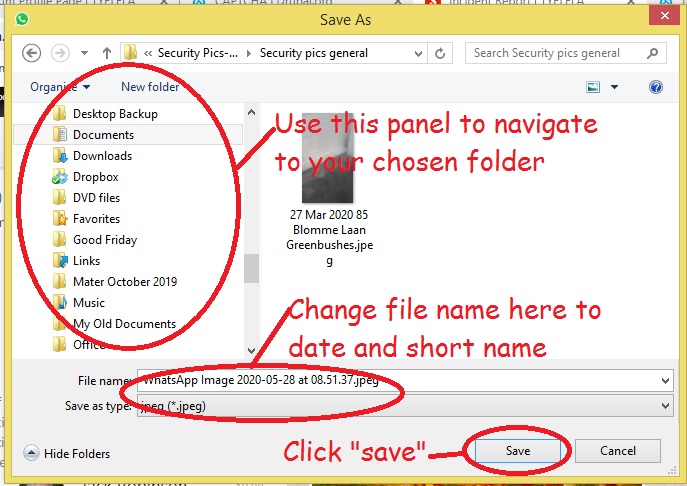
3. Navigate to selected folder and save picture with easily recognisable name
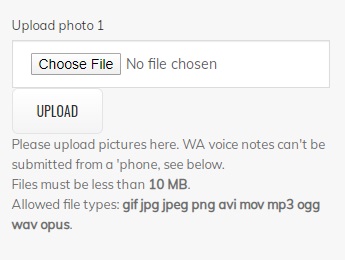
4. In the Incident Report click on 'Chose file' from the 'Upload photo 1, 2, 3 or 4' section.
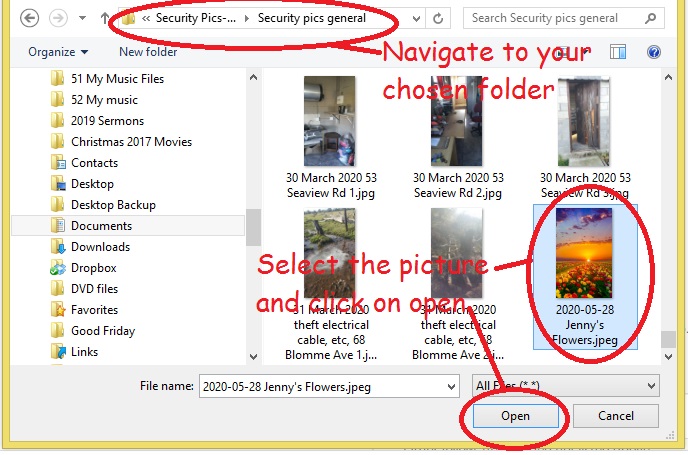
5. Navigate to your chosen folder and double click on picture (or select picture and click 'open')
6. The file name now appears in the Incident Report. Click 'Upload'
Return to Incident Report